How to Make Your Own Notion Template (Beginner Guide)
If you want to learn how to make your own Notion template instead of buying one off the shelf, the trick is to stop thinking “pretty page” and start thinking “reusable system.” A real template is a set of databases, views and properties wired together so cleanly that you — or anyone you share it with — can duplicate it and start working in seconds. This guide walks you through the whole build, from the first database to the share link, with the exact trade-offs most tutorials skip.
Quick answer: To make your own Notion template, create a dedicated page, add a database (not just text), define 5–8 properties, build 2–3 filtered views, connect related databases with relations, add placeholder example rows, then share it as a public “Duplicate” link or save it as a template button. Build it once; reuse it forever.
What makes a Notion template different from a normal page?
A normal page holds information. A template holds a structure that generates the same kind of information again and again. That difference is everything.
When you build a to-do list by typing checkboxes, you’ve made a page. When you build a database of tasks with a Status property, a Due date, and a board view grouped by status, you’ve made a template — because the structure survives every reset.
Good templates share four traits:
- Databases over free text — so you can filter, sort and roll up data later.
- Named views — the same data shown as a table, board and calendar for different jobs.
- Relations — databases that talk to each other (clients ↔ projects ↔ tasks).
- Example rows — one or two filled-in records so a new user immediately sees how it works.
How to make your own Notion template, step by step
Here is the exact sequence I use when building a template from a blank page. It takes about 30–45 minutes for a simple tracker and a few hours for a connected workspace.
1. Start with the outcome, not the layout
Write one sentence describing the job the template does: “Track every client, deal and follow-up in one place.” If you can’t say the job in a sentence, you’ll build a cluttered page nobody wants to reuse.
List the 4–6 pieces of information that sentence implies. For a client tracker that’s name, status, deal value, next step and owner. Those become your database properties.
2. Create the core database
On a fresh page, type /database and choose Table — Inline. This is the spine of your template. Notion’s own documentation on intro to databases is worth a two-minute read if you’re brand new to how they work.
Rename the default “Name” column to something specific (“Client” or “Project”). Delete the demo columns you don’t need — a clean start beats deleting clutter later.
3. Add properties that do work
Properties are where a template earns its keep. Use the right type for each field:
- Status or Select for stages (Lead → Proposal → Won).
- Number for anything you’ll sum (deal value, hours).
- Date for due dates and follow-ups.
- Person for the owner.
- Formula for anything calculated, like “days until due.”
Resist adding more than eight properties at the start. Every extra field is friction for the next person who opens your template.
4. Build 2–3 views for different jobs
One database, several lenses. Click + Add view and create:
- A Table view for editing everything at once.
- A Board view grouped by Status for a visual pipeline.
- A Calendar view driven by your Date property for deadlines.
Then filter aggressively. A “This week” view filtered to Due is within the next 7 days is the kind of touch that makes people say “I’d pay for this.”
5. Connect databases with relations
This is the step that separates a template from a glorified spreadsheet. Add a second database (say, “Tasks”), create a Relation property pointing to your first database, and you can now see every task under each client.
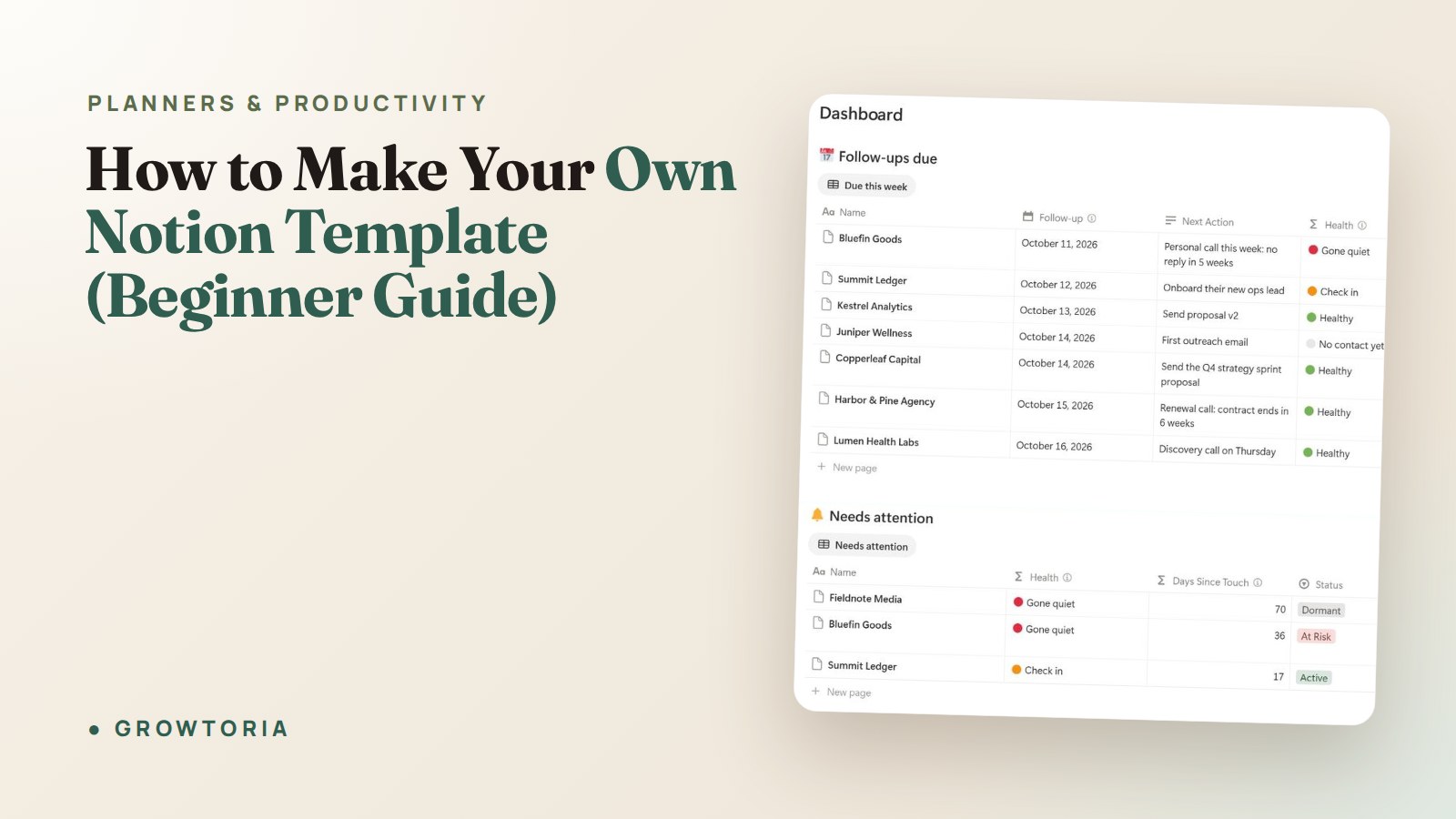
Add a Rollup on top of the relation to count open tasks or sum values. Relations and rollups are the superpower behind every serious Notion CRM or project system.
6. Add example rows, then clean up
Fill in one or two realistic example records. They act as instructions without a manual — the new user copies the pattern. Add a short callout block at the top (/callout) explaining what to do first.
Delete anything you were just testing with. A template should open looking finished, not like a workbench.
7. Turn it into something reusable
You have two ways to make it a true template:
- Template button — inside a database, click the dropdown next to New and set a “New template.” Every new row then starts pre-filled. See Notion’s guide to templates for the exact menu.
- Duplicate link — click Share → Publish, allow duplicating as a template, and anyone with the link can copy the whole page into their own workspace.
Template button vs. duplicate link vs. buying one: which should you use?
Each approach fits a different need. Here’s how they compare when you’re deciding how to make your own Notion template versus starting from a done-for-you system.
| Approach | Best for | Setup time | Reusable by others? |
|---|---|---|---|
| Template button (in-database) | Repeating the same record type (tasks, meeting notes) | 5–10 min | Only inside that workspace |
| Public duplicate link | Sharing a whole system with a team or audience | 30–60 min | Yes, one click |
| Build the full workspace yourself | Learning Notion deeply; unique workflows | 2–6 hours+ | Yes, if published |
| Done-for-you template | Getting a proven structure running today | Under 15 min | Yes |
If your workflow is genuinely unusual, build it yourself — you’ll understand every corner. If you just want a working CRM or pipeline this afternoon, a pre-built system saves you the relation-and-rollup learning curve.
The done-for-you shortcut (when you’d rather not start from zero)
Learning how to make your own Notion template is worth it — but you don’t have to reinvent a client database that thousands of people have already battle-tested. If you want the structure without the build time, these are the exact systems I’d reach for:
- The Notion CRM Template gives you a client, deal and follow-up workspace with a dashboard already wired up — a great model to study and use.
- The Project Management Tracker pairs a Notion workspace with a Google Sheets hybrid for running client retainers.
- For sales specifically, C3 Sales Pipeline Pro brings an 8-stage pipeline with Fit × Intent × Engagement scoring baked in.
Each one is a finished duplicate link, so you clone it and start working in minutes. Prefer to buy where you already shop? You can also grab our tools and templates on our Growtoria Etsy shop.
Common mistakes that make a template feel broken
Most “bad” templates fail for the same few reasons. Avoid these and yours will feel professional:
- Too many properties. Twenty columns scares people off. Ship with the vital few.
- No default view. Set the simplest, most useful view as the one that opens first.
- Relations with no rollups. Linking databases without summarising them wastes the connection.
- Leftover test data. Clear everything except intentional examples before you publish.
- No instructions. One callout at the top (“Start here”) removes 90% of confusion.
If you’re building templates to run an actual business — not just personal projects — it also helps to document the process itself. Our SOP template walkthrough explains how to turn “the way we do this” into a repeatable standard, which pairs naturally with a Notion system.
Where to go next with your Notion build
Once you’re comfortable with databases, views and relations, you can build almost any system you can describe. A few directions worth exploring:
- Study a finished example: our guide to building a Notion CRM in 30 minutes shows the relation-and-rollup pattern end to end.
- If you’re choosing between structures for a company, compare options in the best Notion template for small business roundup — a buy-guide angle rather than a build guide.
- Want zero subscriptions and full offline control instead? See how our offline small business software packs nine tools into one file.
Build one solid template this week. The second one takes half the time, because the patterns — databases, views, relations, rollups — are always the same.
Frequently asked questions
Can I make a Notion template for free?
Yes. Notion’s free personal plan lets you build unlimited databases, views and template buttons, and publish a public duplicate link at no cost. You only need a paid plan for team features like unlimited guests, advanced permissions and version history.
How do I share my Notion template so others can duplicate it?
Open the page, click Share, then Publish, and enable “Allow duplicate as template.” Copy the public URL. Anyone who opens it sees a “Duplicate” button in the top-right that copies the entire page and its databases into their own workspace.
What’s the difference between a template button and a template page?
A template button lives inside a database and pre-fills new rows with the same structure every time (ideal for repeating tasks or meeting notes). A template page is a whole page — often with several databases — that people duplicate once to get an entire system.
How many databases should one Notion template have?
Start with one, and add a second only when you need a relation. Most powerful personal templates use one or two databases; a full business workspace like a CRM typically uses three to seven connected databases with rollups tying them together.
Should I build my own template or buy one?
Build your own if your workflow is unusual or you want to learn Notion deeply. Buy a done-for-you template if you want a proven structure running today — then customise it, which is far faster than starting from a blank page.