How to Restore a WordPress Site From Backup: 7 Fixes
If you’re searching for how to restore a WordPress site from backup, something has probably just gone badly wrong. It might be a failed update, a hacked homepage or a store that suddenly shows a blank white screen. Every hour the site is down costs you orders and customer trust, and the panic makes it easy to cause more damage. The good news is that most restores fail for a short list of predictable reasons, and each one has a clear fix.
See how our WordPress Backup & Restore service handles this →
Quick answer: When working out how to restore a WordPress site from backup, you need two parts from the same moment: your site files (especially wp-content) and a database export. Upload the files, import the database, check the wp-config.php credentials and site URLs, then clear every cache. Most failed restores come from a missing half or mismatched settings.
Before you start: how to restore a WordPress site from backup safely
First, take a snapshot of the broken site. It sounds odd, but if the restore goes wrong you’ll want a way back to “broken but known”. Download the current files and export the current database before you overwrite anything.
Next, check what your backup actually contains. A complete WordPress backup has two parts:
- Files: the wp-content folder (themes, plugins, uploads), plus wp-config.php and .htaccess.
- Database: usually a .sql or .sql.gz file that holds your posts, pages, settings, users, products and orders.
Finally, pick your method. You can restore with the same backup plugin that made the copy, through your host’s control panel, or by hand with SFTP and phpMyAdmin. The original plugin is usually the easiest option because it knows its own archive format. The official WordPress.org backup documentation explains what each part contains if you want more background.
With that in place, here are the problems that most often stop a restore from working, and how to fix each one.
1. The backup is incomplete (files without the database, or the reverse)
Symptom: the restore “finishes”, but your recent posts, products or settings are missing. Or the content is there, but images are broken and the theme looks wrong.
Why it happens: many hosts and plugins back up files and databases separately, often on different schedules. Some free plugin tiers save only the database. As a result, people restore one half and assume they’ve restored everything.
How to check: open the backup archive on your computer. Look for a wp-content folder with uploads inside it and for a file ending in .sql or .sql.gz. Also check the dates, because both parts should be from the same day.
How to fix it:
- Find the matching half. Check your host’s backup area, your plugin’s remote storage (Google Drive, Dropbox, S3) and your inbox for automatic backup emails.
- If you only have the database, reinstall your theme and plugins from fresh copies, then re-upload media from any local copies you have.
- If you only have files, ask your host whether it keeps daily database snapshots. Many do, even if they don’t advertise it.
Restoring a WordPress site from backup is much easier once you know both halves exist, so always check this first.
2. The database import fails or times out
Symptom: phpMyAdmin shows an error such as “file too large”, the page hangs, or the import stops partway with only some tables created.
Why it happens: shared hosting often caps uploads at somewhere between 2 and 64 MB and limits how long a script can run. WooCommerce stores in particular build up large databases from orders, sessions and logs, so a plain browser upload often isn’t enough for them.
How to check: compare the size of your .sql file with the “Max upload size” shown on phpMyAdmin’s import screen. After a failed import, count the tables and compare them with a working copy if you have one.
How to fix it:
- Upload the compressed .sql.gz version instead of the raw file. phpMyAdmin can read it directly.
- Ask your host to run the import on the server, or use WP-CLI if you have SSH access:
wp db import backup.sql. - Before you re-import, empty the database completely so you don’t end up with duplicate or half-written tables.
- If you see a collation error (for example “unknown collation utf8mb4_0900_ai_ci”), the backup came from a newer MySQL version. Your host can import it on a matching server, or a developer can convert the collation safely.
3. “Error establishing a database connection” after the restore
Symptom: the whole site is a plain white page showing only that sentence.
Why it happens: wp-config.php stores the database name, username, password and host. If you restored to a new server or created a fresh database, the old credentials in the backup no longer match.
How to check: open wp-config.php through SFTP or your file manager. Compare DB_NAME, DB_USER, DB_PASSWORD and DB_HOST with the details in your hosting panel.
How to fix it:
- Update the four values so they match the database you just imported into.
- Make sure the database user is actually assigned to that database with full privileges. This step is easy to miss in cPanel.
- Check the table prefix. If your backup tables start with
wpx7_but wp-config.php sayswp_, WordPress will act as if it’s a fresh install.
4. The site redirects to the wrong address or loses its styling
Symptom: you get sent to an old domain or a staging URL, or the login page keeps looping. Sometimes pages load as plain, unstyled text instead.
Why it happens: WordPress stores its own address in the database (the siteurl and home options), along with thousands of full URLs inside your content. If you restore a backup from a different domain, from a staging site or from before you moved from http to https, those old addresses come back with it.
How to check: in phpMyAdmin, open the options table and look at the siteurl and home rows. They should match your live address exactly, including https and www (or no www).
How to fix it:
- Correct those two rows first. That alone usually brings the dashboard back.
- Next, run a search and replace for the old URL that’s safe for serialized data. With WP-CLI, run
wp search-replace 'https://old.example' 'https://new.example' --dry-runfirst, then run it again without the dry-run flag. - Never do a plain find-and-replace on the .sql file in a text editor. It breaks serialized data, and widgets or theme settings can quietly disappear.
5. A PHP version mismatch causes a critical error
Symptom: you see “There has been a critical error on this website” or a white screen, even though the files and database restored cleanly.
Why it happens: an older backup may include plugins written for an older PHP version, while your server has since moved to PHP 8.x. Restoring onto an older server can break the other way, when code expects newer PHP than the server has.
How to check: turn on debugging by setting WP_DEBUG and WP_DEBUG_LOG to true in wp-config.php, then read wp-content/debug.log. The error usually names the exact plugin or theme file that failed.
How to fix it:
- Disable the plugin named in the log by renaming its folder (for example, add “-off” to the end).
- Log in, update that plugin to its latest version, then switch it back on.
- If the theme is causing the error, switch to a default theme while you update it.
For a full walkthrough of this situation, see our guide on safely updating the PHP version in WordPress.
6. Pages return 404 or 403 errors after the restore
Symptom: the homepage loads, but every other page, product or category shows “Not Found” or “Forbidden”.
Why it happens: backups often leave out the .htaccess file that makes pretty permalinks work, or it gets overwritten. Files you upload by hand can also end up with the wrong ownership or permissions.
How to check: make sure .htaccess exists in the site root (turn on “show hidden files” in your file manager). Then check permissions. Folders should normally be 755 and files 644.
How to fix it:
- Go to Settings, then Permalinks, and click Save without changing anything. WordPress will rebuild the rewrite rules.
- Reset permissions with your host’s tool, or ask support to fix file ownership for your account.
- On Nginx servers, permalinks depend on the server config rather than .htaccess, so your host will need to check it.
7. The restore worked, but you still see the old broken site
Symptom: you’re sure the restore finished, but you or your visitors still see the broken version, or a mix of old and new.
Why it happens: cached copies of your pages are stored in several places: your caching plugin, the server cache, a CDN such as Cloudflare and your own browser. Any of these can keep showing the old pages for hours.
How to check: open the site in a private window on your phone, using mobile data. If it looks right there, the problem is the cache, not the restore.
How to fix it: clear your caching plugin first, then the host’s server cache, then the CDN and finally your browser. Working in that order stops each layer from refilling the next with stale pages.
A note for WooCommerce stores: the order gap
If you run a store, read this before you restore anything. A database restore rolls everything back to the moment the backup was made, so any orders, customer accounts, stock changes or subscription renewals made after that point will be lost.
Before you restore, export your recent orders from WooCommerce and note the payment IDs from Stripe or PayPal. Afterwards, compare the lists and re-enter or reconcile any missing orders. If only part of the site is broken, fixing that part is often safer than rolling back the whole site.
Troubleshooting table: restore problems at a glance
| Symptom after restoring | Likely cause | Quick fix |
|---|---|---|
| Content missing or images broken | Only half the backup was restored | Find the matching files or database from the same date |
| Import stops or “file too large” | Upload or timeout limits | Use .sql.gz or WP-CLI, or ask the host to import it |
| “Error establishing a database connection” | Wrong credentials or table prefix in wp-config.php | Match the database values and prefix to the new database |
| Redirects to old domain, login loops | siteurl and home still point to the old address | Fix both options, then run a serialization-safe search-replace |
| “Critical error” or white screen | A plugin or theme doesn’t work with the server’s PHP version | Read debug.log, then disable and update the plugin it names |
| Inner pages 404 or 403 | Missing .htaccess or wrong permissions | Re-save permalinks and reset permissions to 755/644 |
| Old broken version still showing | Plugin, server, CDN or browser cache | Clear every cache layer in order |
| Recent orders disappeared | The database rolled back past new orders | Reconcile against your payment gateway records |
How to avoid another emergency restore
Once the site is stable, set up backups you can rely on. In practice, that comes down to three habits:
- Keep copies off the server. A backup stored on the same hosting account disappears if that server fails or is hacked.
- Back up daily if you sell online. Weekly is fine for a brochure site, but a store changes every time someone checks out.
- Test a restore now and then. Every few months, restore your backup to a staging copy. Until you’ve done that, you don’t really know whether the backup works.
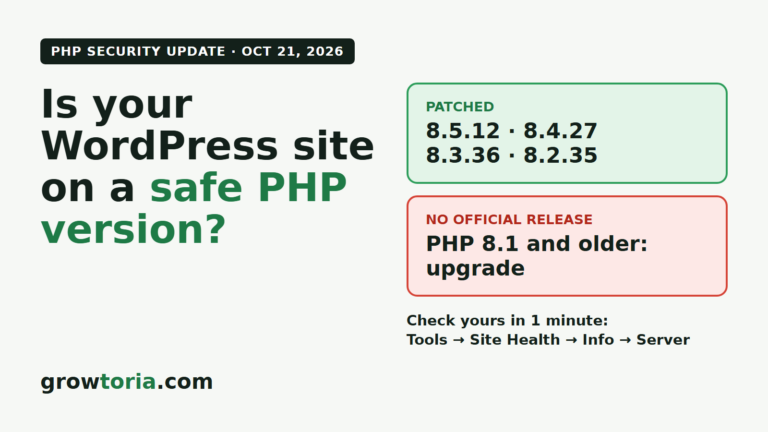
It also helps to keep the server software up to date, because outdated PHP is a common cause of the problems above. Our overview of the October 2026 PHP security update covers what to check.
When to call in a pro
Restoring a backup on a test site is one thing. Doing it on a live store, with customers waiting and no clear error message, is much more stressful. If you’ve tried the steps above and the site still won’t come back, or you don’t want to risk overwriting good data, it makes sense to hand it over.
Our WordPress Backup & Restore service takes care of the whole job:
- A full backup of your files and database, and we test the restore so you know it works.
- An off-site copy that survives a server crash.
- One-click rollback when an update or change goes wrong.
- Optional automatic nightly backups, so you stay covered from now on.
- Prices start at $60, and it’s fixed or refunded.
Not sure what caused the problem? Describe what you’re seeing on WhatsApp and we’ll reply with a no-obligation quote.
Leave your name and what is happening on WhatsApp — we diagnose it, talk it through and send you a quote. No obligation, no jargon.
Message us on WhatsAppFrequently asked questions
How long does a WordPress restore take?
A small site restored with its original backup plugin can be back in 15 to 30 minutes. A large WooCommerce database, a domain change or PHP errors can stretch that to several hours. Most of that time goes on troubleshooting, not copying files.
Can I restore WordPress without access to the dashboard?
Yes. Upload the files over SFTP or your host’s file manager, then import the database with phpMyAdmin or WP-CLI. You don’t need the dashboard at all, which helps when the site is completely down.
Will restoring a backup delete my recent WooCommerce orders?
Yes. A full database restore removes anything created after the backup date, including orders and new customer accounts. Export your recent orders first, then check them against your payment gateway afterwards.
Does my host’s backup count as a real backup?
It helps, but don’t rely on it alone. Host backups usually sit on the same infrastructure, may only be kept for a few days and sometimes cost extra to restore. Keep at least one independent copy somewhere else as well.
How do I restore a WordPress site from backup on a live store safely?
Take a snapshot of the current site first, restore the backup to a staging copy and test checkout and your key pages. Only then push it live. If you can, do it during your quietest sales hours and turn on maintenance mode while you work.