How to Update PHP Version in WordPress: 7 Safe Fixes
If you’ve been searching for how to update php version in wordpress, your host has probably sent you a scary warning, or Site Health has flagged your server as outdated. Do it the wrong way and your store can show a white screen or a “critical error” in the middle of a busy sales day. The good news is that it’s usually a 10-minute job once you know where the setting lives and what to check first. This guide walks you through it step by step, including what to do when something breaks.
See how our Hosting & cPanel service handles this →
Quick answer: Back up your site and update WordPress, your theme and all plugins. Then open your hosting panel (in cPanel, “MultiPHP Manager” or “Select PHP Version”) and choose PHP 8.3 or newer for your domain. Reload the site, test checkout and wp-admin, and switch back right away if anything breaks.
Before you start: a 5-minute safety checklist
Before you get into how to update php version in wordpress, take five minutes to prepare. Changing PHP is easy to undo, but only if you’re ready for it. Most horror stories come from people who skipped one of these steps.
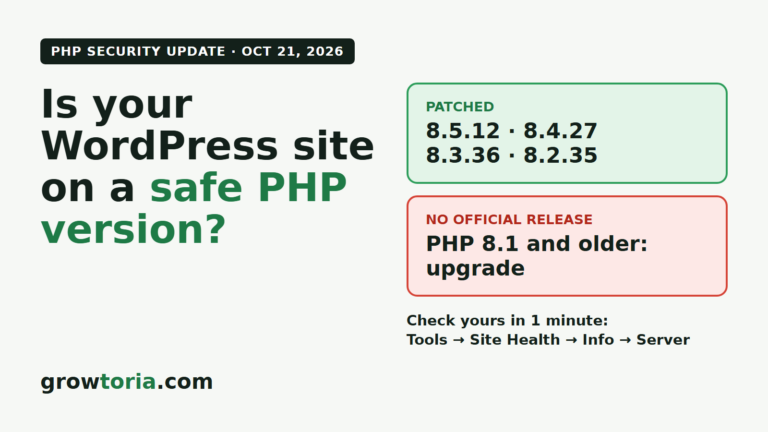
- Check your current version. Go to Tools → Site Health → Info → Server and note the PHP version listed there.
- Take a full backup. Back up both files and database. Use your host’s backup tool or a plugin, and make sure you can actually download the backup.
- Update everything. That means WordPress core, your theme and every plugin. Old code is the number one reason a PHP upgrade fails.
- Pick a quiet time. Early morning or your slowest weekday. Never during a sale.
- Use staging if you have it. Test the new version on a copy of your site first, then repeat on the live site.
Which version should you choose? WordPress.org currently recommends PHP 8.3 or greater (see the official WordPress server requirements). So when you work out how to update php version in wordpress, make 8.3 or newer your target. PHP 8.1 is already end-of-life, and PHP 8.2 stops getting security fixes at the end of 2026. For the security side, our article on the PHP security update for October 2026 covers what site owners should check right now.
Cause 1: You can’t find how to update PHP version in WordPress
Symptom: You’ve looked all over the WordPress dashboard and there’s no PHP setting anywhere.
Why it happens: PHP isn’t a WordPress setting. It runs on your server, so the switch lives in your hosting account, not in wp-admin. That’s the first thing to understand about how to update php version in wordpress: you do it at the host level, and WordPress uses whatever version the server gives it.
How to fix it: Find the right panel for your type of hosting.
On cPanel hosting
- Log in to cPanel and search for MultiPHP Manager.
- Tick the checkbox next to your domain.
- Choose the new version from the dropdown (for example, PHP 8.3) and click Apply.
Some cPanel hosts that run CloudLinux show Select PHP Version instead. It works the same way: pick the version, then click Set as current.
On Plesk or managed WordPress hosting
- Plesk: Websites & Domains → your domain → PHP (or PHP Settings) → choose the version → OK.
- Managed hosts: look for a “PHP engine”, “Tools” or “Site settings” tab in your host’s dashboard. Most offer a one-click switch.
- No option anywhere? Open a support ticket and ask your host to change it for you. That’s a completely normal request.
Cause 2: Outdated plugins or themes crash on the new PHP
Symptom: Right after the switch, you see “There has been a critical error on this website”, a blank white page or a broken layout.
Why it happens: Every new PHP release removes old functions and gets stricter about sloppy code. A plugin that hasn’t been updated in years may call something that no longer exists in PHP 8.x. It’s the most common surprise for anyone learning how to update php version in wordpress.
How to check it: WordPress usually emails the admin address with the name of the plugin or theme that failed. If it doesn’t, turn on debug logging by adding these lines to wp-config.php, above the “That’s all, stop editing” line:
define( 'WP_DEBUG', true );define( 'WP_DEBUG_LOG', true );define( 'WP_DEBUG_DISPLAY', false );
Next, reload the page and open wp-content/debug.log. The file path in the error shows you which plugin is at fault.
How to fix it:
- Switch PHP back to the previous version so your store is live again.
- Update the plugin or theme that caused the error. If there’s no update, check when it was last maintained.
- If it’s abandoned, replace it with an alternative that’s still maintained.
- Try the PHP switch again.
If you can’t reach wp-admin at all, rename the plugin’s folder in wp-content/plugins using File Manager or FTP. WordPress will deactivate it automatically.
Cause 3: Missing PHP extensions after the switch
Symptom: The site loads, but image uploads fail, product thumbnails don’t generate, or Site Health warns that a required module is missing.
Why it happens: Each PHP version on your server has its own list of enabled extensions. So when you move from 7.4 to 8.3, extensions you depended on (like imagick, intl or zip) may not be turned on for the new version. Most guides on how to update php version in wordpress skip this step.
How to check it: Go to Tools → Site Health → Status. WordPress lists missing modules clearly.
How to fix it:
- In cPanel, open Select PHP Version and click the Extensions tab.
- Tick the missing modules. The usual ones for WooCommerce stores are
curl,gdorimagick,intl,mbstring,xml,zip,sodiumandmysqli. - Changes usually save on their own. Then check Site Health again.
If your panel has no extensions screen, ask your host to enable them for the new version.
Cause 4: An old .htaccess rule forces the previous version
Symptom: You changed the version in your panel, but Site Health still shows the old one.
Why it happens: Older setups sometimes lock PHP to one version with a handler line inside .htaccess, and that line overrides whatever you pick in the panel. People run into this all the time when they look up how to update php version in wordpress for a site that was moved from another host.
How to check it: Open File Manager, turn on “show hidden files”, and open the .htaccess file in your site’s root folder. Look for lines starting with AddHandler or SetHandler that mention something like php74 or ea-php74.
How to fix it:
- Download a copy of
.htaccessas a backup. - Delete the outdated handler block, but leave the standard
# BEGIN WordPresssection alone. - Apply the version again in MultiPHP Manager. It writes a fresh, correct handler.
- Reload Site Health to confirm the new version.
Cause 5: Caching makes it look like nothing changed
Symptom: Some pages work, others look broken, or the site seems to switch between old and new behaviour.
Why it happens: Page caches, server caches (like LiteSpeed or OPcache) and CDNs such as Cloudflare keep serving copies built under the old PHP. As a result, you end up judging the new version by stale pages. Any good walkthrough of how to update php version in wordpress should finish with a cache purge.
How to fix it:
- Purge your caching plugin (LiteSpeed Cache, WP Rocket, W3 Total Cache and so on).
- Purge your CDN cache if you use one.
- Test in a private browser window while logged out, then again while logged in.
- Run a full test order: add to cart, checkout, payment and confirmation email.
Keep in mind that WP-CLI and cron jobs can run on a different command-line PHP version from your website. If scheduled tasks start failing, ask your host which PHP binary your cron jobs use.
Cause 6: PHP settings reset to small defaults
Symptom: After the update, large product imports time out, backups stop halfway, or you see “Allowed memory size exhausted”.
Why it happens: Custom values such as memory_limit or max_execution_time are often stored separately for each PHP version. When you switch versions, you can quietly fall back to the host’s defaults. Few people mention this when explaining how to update php version in wordpress.
How to check it: In Site Health → Info → Server, compare the memory limit and max execution time with what you had before.
How to fix it: In cPanel, open MultiPHP INI Editor (or the Options tab in Select PHP Version) and set sensible values for a store. For example: memory_limit 256M or 512M, max_execution_time 120 and upload_max_filesize 64M. Save, then try the task that failed again.
Cause 7: Your host doesn’t offer a modern PHP version
Symptom: The newest option in your panel is 7.4 or 8.0, or there’s no PHP selector at all.
Why it happens: Some budget or legacy servers haven’t been maintained in years. In that case, knowing how to update php version in wordpress won’t help you, because the version you need isn’t installed on the server.
How to fix it: First, ask your host whether they can move your account to a newer server. If they can’t, it’s time to move to a host that supports current PHP. That’s a bigger job, so plan it, budget for it and test on staging first. If you’re working out the cost, our website price calculator guide can help you estimate realistic numbers before you commit.
Troubleshooting table: symptom, cause and quick fix
Use this table as a cheat sheet so you don’t have to guess when something goes wrong.
| What you see | Likely cause | Quick fix |
|---|---|---|
| No PHP option in wp-admin | PHP is set at the server level | Use MultiPHP Manager, Plesk or your host’s dashboard |
| “Critical error” or white screen | Plugin or theme not compatible | Roll back PHP, check debug.log, then update or replace the plugin |
| Image uploads or thumbnails fail | Missing extension (imagick, gd) | Enable it under Select PHP Version → Extensions |
| Site Health still shows the old version | Handler line in .htaccess | Remove the old AddHandler block and apply the version again |
| Pages look mixed or inconsistent | Stale cache or CDN | Purge plugin, server and CDN caches |
| “Memory exhausted” or timeouts | PHP limits reset to defaults | Raise the limits in MultiPHP INI Editor |
| Newest option is 7.4 or 8.0 | Outdated server | Ask your host to move you, or migrate |
After the update: what to test
Once the new version is live, spend 15 minutes checking the parts of your site that bring in money. Above all, don’t stop at the homepage.
- Log in to wp-admin and open a few settings pages.
- Place a real test order with your main payment method.
- Confirm order emails reach both you and the customer.
- Submit your contact form.
- Check
debug.logfor new warnings, then turnWP_DEBUGoff again.
Finally, set a reminder in your calendar. PHP versions reach end-of-life every year or two, so you’ll need to know how to update php version in wordpress again.
When to call in a pro
You might have worked through every cause above and still have a broken site. Or you might not want to experiment with how to update php version in wordpress on a live store at all. Either way, it makes sense to hand the job over, because an hour of downtime can cost more than the fix itself.
Our Hosting & cPanel service covers exactly this kind of work:
- PHP version updates, including moves off end-of-life PHP
- SSL, caching and a staging site configured
- Business email set up
- cPanel or hosting takeover and cleanup
Pricing starts from $140, and the work is fixed or refunded. Not sure where your problem is? Send us what is happening on WhatsApp: we diagnose it and send you a quote, no obligation.
Leave your name and what is happening on WhatsApp — we diagnose it, talk it through and send you a quote. No obligation, no jargon.
Message us on WhatsAppFrequently asked questions
Will updating PHP break my WordPress site?
Usually not, as long as WordPress, your theme and your plugins are up to date. If something does break, switch back to the previous version in your hosting panel and your site comes back right away.
Can I update PHP from inside the WordPress dashboard?
No. PHP runs on your server, so you change it in your hosting control panel, such as cPanel’s MultiPHP Manager, Plesk or your managed host’s dashboard. That’s the main thing to know about how to update php version in wordpress.
Which PHP version should I use for WordPress and WooCommerce?
Use PHP 8.3 or newer, which matches WordPress.org’s current recommendation. Avoid 8.1 and older because they no longer get security fixes, and plan to move off 8.2 before the end of 2026.
How long does a PHP update take?
The switch itself takes less than a minute. Preparing and testing, including a backup and a test order, usually takes 30 to 60 minutes for a typical small store.
Do I need a backup before changing PHP?
Yes. Switching the PHP version back is easy, but a backup protects you if a plugin update or a settings change goes wrong along the way.