FluentCRM Setup Guide: 7 Fixes When It Won’t Work
A fluentcrm setup guide should leave you with a working email list. Instead, plenty of store owners end up with forms that do nothing, automations that never start and welcome emails that never land. Every missed signup is a sale you won’t get back, so it’s stressful when you can’t see which setting is at fault. Fortunately, nearly every failure comes from a small set of causes, and each one has a clear fix.
See how our CRM & Automation service handles this →
Quick answer: Most FluentCRM setup problems come from four places: no proper SMTP connection, WP-Cron not running, forms or WooCommerce not mapped to lists and tags, and double opt-in leaving contacts stuck as Pending. Connect a real email provider, confirm scheduled tasks run, map every form, then send yourself a test.
This fluentcrm setup guide works as a troubleshooter. Go through the sections in order, because the early problems (email delivery and scheduled tasks) often cause the later ones. Before you change anything on a live store, take a full backup so you can roll back. If you’ve never tested one, our walkthrough on restoring a WordPress site from backup shows what a usable backup looks like.
1. Emails never arrive: the first fix in any fluentcrm setup guide
Symptom: Test emails, double opt-in confirmations and campaigns show up hours late or not at all. FluentCRM may even mark them as sent while nothing reaches the inbox.
Why it happens: By default, WordPress passes email to your web server’s built-in mail function. Many hosts throttle or block it. On top of that, Gmail and Outlook distrust it because it isn’t authenticated for your domain. FluentCRM can queue a message, but it can’t force a weak mail server to deliver it.
How to check
- Look through your plugin list for an SMTP plugin. If there isn’t an active one, this is almost certainly your problem.
- Send a test from the SMTP plugin to an address you own on another domain, such as a personal Gmail account.
- Open FluentCRM → Settings → Email Settings and make sure the From email is on your own domain, not a free mailbox.
How to fix it
- Choose a transactional email provider such as Amazon SES, Mailgun, Postmark, Brevo or SendGrid. Don’t send bulk mail through a personal Gmail account.
- Install an SMTP plugin. FluentSMTP comes from the same team and pairs naturally with FluentCRM, though any reputable SMTP plugin will do.
- Connect it using the API key or SMTP credentials from your provider, then verify your sending domain in the provider’s dashboard.
- Set the From name and From email in FluentCRM to match the verified domain, for example [email protected].
- Send a test, then send one campaign to yourself before you email your list.
The rest of this fluentcrm setup guide assumes you’ve finished this step. An automation that fires but can’t deliver looks exactly the same as one that’s broken.
2. Automations don’t fire: WP-Cron isn’t running
Symptom: Contacts enter an automation but never get past a wait step. Scheduled campaigns stay stuck on “Scheduled”, or emails go out in odd bursts.
Why it happens: FluentCRM works through its sending queue in the background using WordPress scheduled tasks (WP-Cron). The catch is that WP-Cron only runs when someone visits the site. On a quiet store, or one behind heavy page caching, it may barely run at all. Some hosts also switch it off without setting up a replacement.
How to check
- Open Tools → Site Health and look for warnings about late or failed scheduled events.
- Open
wp-config.phpand look forDISABLE_WP_CRONset to true. If it’s there and nothing replaced it, nothing is processing the queue. - Make sure the automation itself is set to Published, not Draft.
How to fix it
- Add a real server cron job in your hosting panel, or ask your host to add one, that calls wp-cron.php every minute:
*/1 * * * * wget -q -O - https://yourstore.com/wp-cron.php?doing_wp_cron >/dev/null 2>&1 - Next, add
define( 'DISABLE_WP_CRON', true );to wp-config.php so page visits stop triggering duplicate runs. - Check that the automation’s trigger matches how contacts actually arrive. For example, a “List applied” trigger won’t fire for a contact who only received a tag.
- Test with a brand-new email address. Many triggers skip contacts who are already in the funnel.
3. Forms submit, but no contact appears
Symptom: The visitor sees your thank-you message, yet your contact list doesn’t change.
Why it happens: Either the form plugin was never connected to FluentCRM, or the email field isn’t mapped. In Fluent Forms the connection is set per form, so a new form starts with no CRM link at all. Other form builders may need a FluentCRM Pro integration or an incoming webhook.
How to check
Submit the form with a fresh test address and search for it under FluentCRM → Contacts. Then look in the form plugin’s entries. If the entry was saved but no contact was created, the problem is the connection, not the form.
How to fix it (Fluent Forms)
- Go to Fluent Forms → Integrations and make sure the FluentCRM module is turned on.
- Open the form, then go to Settings & Integrations → Configure Integrations and add a FluentCRM feed.
- Map the email field (it’s required), plus the first and last name fields. Choose a list and add a tag that records where the lead came from, such as “Lead – Homepage”.
- Decide whether to use double opt-in (covered in the next section).
- Save the feed and submit a real test.
For other builders, check which integrations your version of FluentCRM supports. If yours isn’t listed, create an incoming webhook under FluentCRM → Settings and point the form’s webhook action at it. Any fluentcrm setup guide that skips this mapping step leaves your forms quietly throwing leads away.
4. Contacts are stuck on “Pending”
Symptom: New contacts sit in Pending status, and your campaigns skip them.
Why it happens: Double opt-in is turned on, so each contact has to click a confirmation link first. If that email doesn’t arrive (see cause 1), or the confirmation page is served from cache, the contact stays Pending indefinitely.
How to check
- Filter Contacts by Pending status and open a few profiles to see whether a confirmation email was sent.
- Sign up yourself in a private browser window and click the confirmation link. Then check that your status changes to Subscribed.
How to fix it
- Sort out email delivery first. Most Pending problems are really delivery problems.
- Edit the confirmation email under FluentCRM → Settings → Double Opt-in. Use a clear subject line and a single obvious button, and set a friendly redirect page for after confirmation.
- Exclude FluentCRM’s confirmation URLs (anything with
fluentcrm=in the query string) from your page cache. - Keep double opt-in on if you sell to the EU or UK. If you turn it off, make sure your forms collect clear, explicit consent.
Avoid bulk-switching Pending contacts to Subscribed. Without a consent record you risk complaints, and complaints damage your sending reputation.
5. WooCommerce customers aren’t syncing
Symptom: Your store has hundreds of orders, but FluentCRM only shows a handful of customers, and purchase-based automations never start.
Why it happens: FluentCRM doesn’t automatically bring in past customers. It only captures new activity through the triggers you set up. Deeper WooCommerce triggers and purchase history are part of FluentCRM Pro in many versions. Also, guest checkouts don’t create WordPress users, so an import of WordPress users misses those buyers.
How to check
Compare the number of customers in WooCommerce → Customers with the contacts in FluentCRM tagged as customers. After that, open a new automation and look at which WooCommerce triggers your version offers.
How to fix it
- Import past buyers through Contacts → Import. Use the WooCommerce option if your version has one. Otherwise, export customers to CSV and import them into a “Customers” list.
- Only mark contacts as Subscribed if they agreed to marketing. Import everyone else as transactional-only, or leave them out.
- Add a marketing consent checkbox to checkout so future buyers opt in properly.
- Build an automation on a WooCommerce order trigger, for example: order completed → add tag “Customer” → start a thank-you sequence.
- Place a test order using a test gateway or a 100% coupon, then confirm the contact and tag appear.
6. Emails land in spam: SPF, DKIM and DMARC are missing
Symptom: Emails technically arrive, but they go to Spam or Promotions, and open rates are close to zero.
Why it happens: Mailbox providers check whether your domain has authorised the server sending your email. Gmail and Yahoo now expect bulk senders to pass authentication and offer a one-click unsubscribe. Without those, your carefully written emails get filtered.
How to check
Send a campaign to a Gmail address, open it, click the three-dot menu and choose “Show original”. You want to see SPF, DKIM and DMARC all marked PASS.
How to fix it
- Add the SPF and DKIM records your email provider gives you at your DNS host. A domain can only have one SPF record, so merge the includes rather than adding a second record.
- Add a DMARC record, starting gently:
v=DMARC1; p=none; rua=mailto:[email protected] - Keep FluentCRM’s unsubscribe link in the footer of every marketing email.
- Warm up slowly. Email your most engaged contacts first, and never blast a list that’s several years old.
7. Dashboard won’t load or links break: caching, security and PHP conflicts
Symptom: The FluentCRM admin spins forever or shows a blank screen. Alternatively, unsubscribe and tracking links return errors or old cached pages.
Why it happens: FluentCRM’s admin screens run on the WordPress REST API (/wp-json/). Security plugins or firewalls that block the REST API break the dashboard. Similarly, aggressive caching and script minification break public CRM pages, and an outdated PHP version can cause fatal errors.
How to check
- Open your browser’s developer tools, go to the Network tab and reload FluentCRM. Look for
wp-json/fluent-crmrequests returning 401, 403 or 500 errors. - Check your PHP version under Tools → Site Health → Info → Server.
- Turn off JavaScript minification for a moment and see whether the problem goes away.
How to fix it
- Allow
/wp-json/fluent-crm/in your security plugin and any server firewall. - Exclude FluentCRM’s public pages (manage subscription, unsubscribe, confirmation) and any URL containing
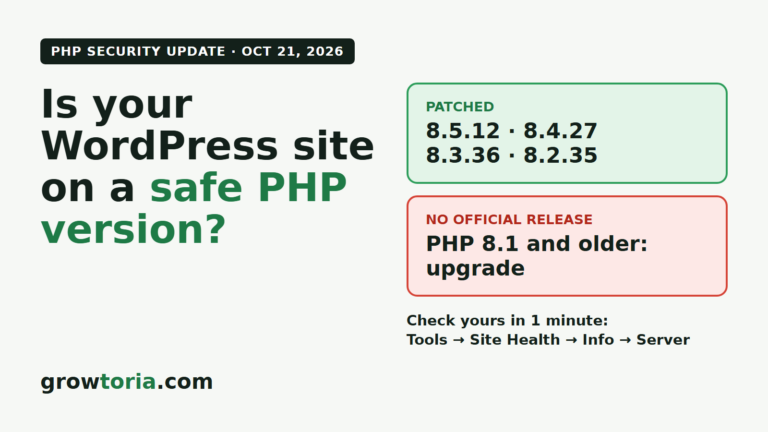
fluentcrm=from page caching. - Run a currently supported PHP version. Our guide to updating the PHP version in WordPress safely walks through it, and if your host has flagged an old PHP branch, our note on the October 2026 PHP security update explains what to check.
- Keep FluentCRM and its add-ons on matching versions. The changelog on the official FluentCRM listing on WordPress.org shows what changed in each release.
- If it’s still broken, test on a staging copy with a default theme and other plugins disabled until the conflict shows itself.
The setup order that avoids most of these problems
If you’re starting fresh, this fluentcrm setup guide boils down to one rule: build the plumbing before you write emails. In practice, that means:
- Back up the site and confirm PHP is up to date.
- Connect SMTP and authenticate your domain (SPF, DKIM, DMARC).
- Set up a real server cron.
- Create your lists and a simple tag structure, for example by source, interest and customer status.
- Connect forms and WooCommerce, mapping every field.
- Build one automation, test it end to end, and only then add more.
Quick troubleshooting table
Use this table to match what you’re seeing to the most likely cause before working through the full fluentcrm setup guide above.
| Symptom | Likely cause | Quick fix |
|---|---|---|
| No emails arrive at all | No SMTP provider connected | Install an SMTP plugin and connect a transactional provider |
| Automations stall at wait steps | WP-Cron not running | Add a one-minute server cron and disable WP-Cron |
| Form submits, no contact created | Form not mapped to FluentCRM | Add a FluentCRM feed and map the email field |
| Contacts stuck on Pending | Double opt-in email not delivered or cached | Fix delivery and exclude confirmation URLs from cache |
| Past customers missing | Never imported; guests aren’t WP users | Import a WooCommerce customer CSV with correct status |
| Emails go to spam | Missing SPF, DKIM or DMARC | Add DNS records from your email provider |
| Dashboard spins or goes blank | REST API blocked or PHP too old | Allow /wp-json/fluent-crm/ and update PHP |
When to call in a pro
Sometimes you’ve worked through every section and still can’t find the cause. Or you simply don’t want to experiment on a store that’s taking orders right now. Either way, that’s a sensible point to hand it over rather than lose another afternoon to DNS records and cron settings.
Our FluentCRM setup and automation service covers the whole job:
- FluentCRM installed and configured
- Automations and lead tags set up
- Forms and landing pages connected
- An optional 5-email welcome sequence
It starts from $60. Not sure which of the problems above you’re dealing with? Describe what’s happening on WhatsApp and we’ll come back with a no-obligation quote.
Leave your name and what is happening on WhatsApp — we diagnose it, talk it through and send you a quote. No obligation, no jargon.
Message us on WhatsAppFrequently asked questions
Is FluentCRM free to use?
Yes. The core plugin is free on WordPress.org and covers contacts, lists, tags, campaigns and basic automations. FluentCRM Pro adds deeper WooCommerce triggers and more integrations. There’s no per-contact fee, but you do pay your email provider for sending.
Do I really need an SMTP plugin for FluentCRM?
In practice, yes. Your server’s default mail function is unreliable and unauthenticated, so confirmations and campaigns go missing or land in spam. Every working fluentcrm setup guide starts with a proper SMTP connection to a transactional provider.
How long does a FluentCRM setup take?
A basic setup with one form, one list and one welcome automation usually takes a few hours if everything cooperates. Most of the lost time goes on email authentication, DNS changes and tracking down why automations aren’t firing.
Will FluentCRM slow down my WooCommerce store?
Usually not, because sending happens in the background. Even so, large sends on cheap shared hosting can strain the server. Use a real server cron, keep a sensible sending speed in FluentCRM’s email settings, and send big campaigns at quiet times.
Can I move my list from Mailchimp to FluentCRM?
Yes. Export your audience as a CSV, then import it through Contacts → Import, mapping each field to the matching FluentCRM field. Import unsubscribed and cleaned contacts with those statuses intact, so you don’t email people who already opted out. Once that’s done, carry on with the rest of this fluentcrm setup guide as normal.