WooCommerce Image SEO Optimization: 7 Fast Wins
WooCommerce image SEO optimization is the practice of naming, sizing, compressing and describing your product photos so Google can read them, rank them, and load them fast for shoppers. It sits inside the wider job of product-page SEO — if you want the full picture first, read our WooCommerce product page SEO guide — but images are the piece most store owners skip, and it’s the one that quietly costs you rankings and sales.
Every product you sell has at least one photo. That’s a free ranking asset most shops upload straight off a phone or supplier site with a name like IMG_4821.jpg and no alt text. Let’s fix that.
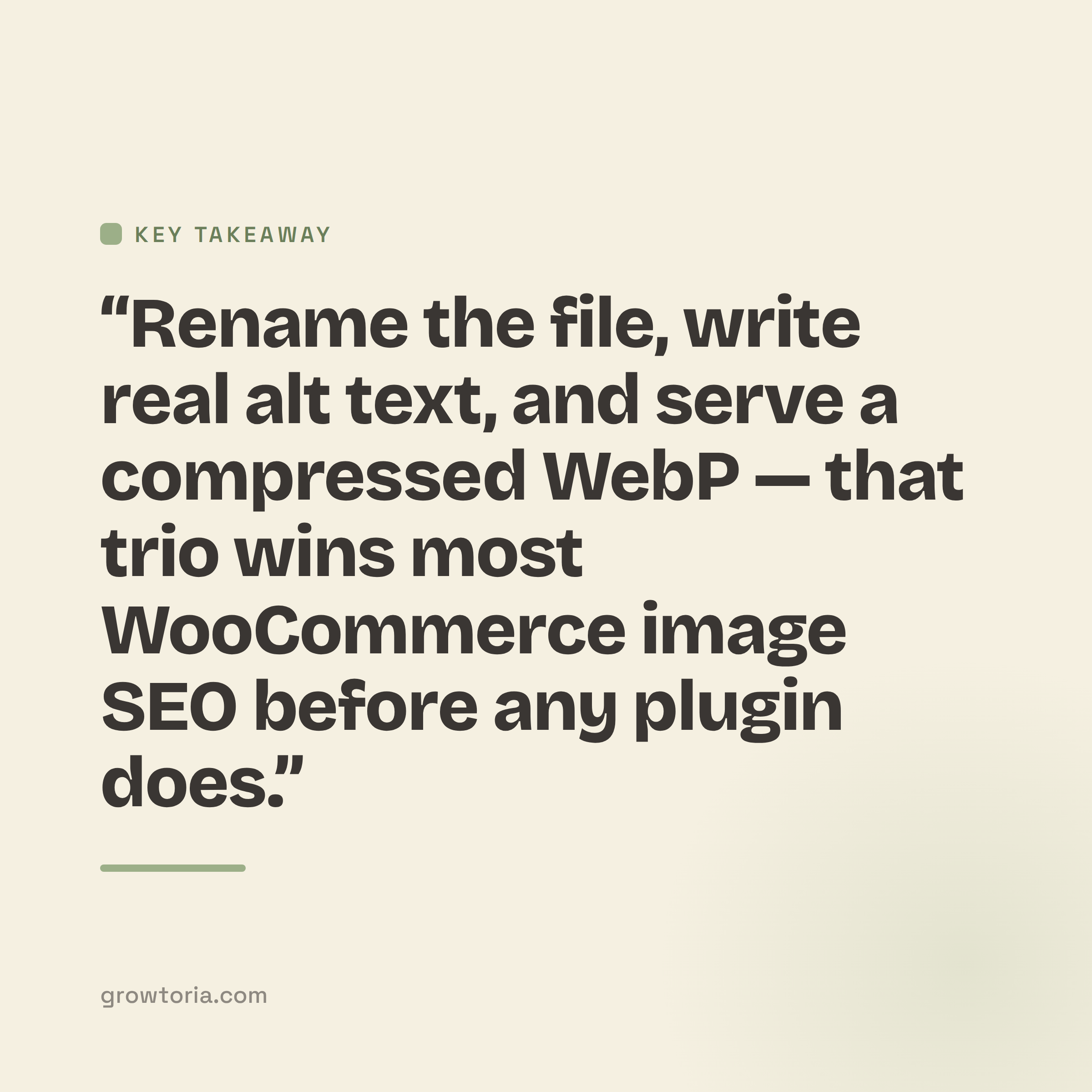
Quick answer: WooCommerce image SEO optimization means renaming files with descriptive keywords before upload, writing accurate alt text, compressing images and serving WebP, setting correct dimensions with lazy loading, and adding image structured data. Done together, these help product photos rank in Google Images and speed up your pages.
What is WooCommerce image SEO optimization?
It’s the set of on-page steps that make your store’s images both search-friendly and fast. Search engines can’t “see” a photo the way a person does — they rely on the file name, the alt text, the surrounding text and structured data to understand it.
Get those signals right and two things happen. Your products start appearing in Google Images and image packs, and your pages load faster because the files are smaller — and speed is itself a ranking factor. It’s one job with two payoffs.
Why do product images matter for WooCommerce SEO?
Because images are usually the heaviest thing on a WooCommerce product page and the most under-optimised. A single un-compressed product shot can be 2–4 MB; a properly sized WebP of the same photo is often under 150 KB.
According to Google’s own web.dev guidance, WebP images are typically 25–35% smaller than comparable JPEGs at the same quality. On a category page with 20 products, that difference decides whether your store loads in two seconds or eight.
- Rankings: faster pages rank better and hold shoppers longer.
- Free traffic: optimised images surface in Google Images.
- Accessibility: good alt text helps screen-reader users and is a trust signal.
How do you optimize WooCommerce images for SEO in 7 steps?
Optimize WooCommerce images for SEO by fixing the file before upload, then letting WordPress and your SEO plugin handle the rest. Here’s the exact order I use on every store.
1. Rename the file before you upload it
Rename IMG_4821.jpg to something a human would type into search, like blue-linen-apron-womens.jpg. Use hyphens between words, all lowercase, no spaces or underscores.
WordPress keeps the file name as part of the image URL, so this is a permanent signal you set once at upload. Do it in your Finder or file explorer before you touch the WooCommerce media uploader.
2. Write alt text that describes the product, not the keyword
Alt text is the single most important image SEO field. Describe what’s actually in the photo the way you’d describe it to someone on the phone: “Women’s blue linen apron with front pocket, tied at the waist.”
Add it in the WooCommerce media library: click the image, and fill the Alt Text box. Don’t stuff keywords — one natural mention of the product is plenty, and it doubles as accessibility text.
3. Compress and resize before upload
Resize the image to the largest size it will ever display — usually 1000–1600px on the long edge for a product photo. Then compress it. A free tool like Squoosh or TinyPNG gets you 60–80% smaller files with no visible quality loss.
Uploading a 4000px camera original and letting the browser shrink it is the most common speed mistake in WooCommerce.
4. Serve WebP instead of JPEG or PNG
WebP is the modern format Google recommends for the web. Most caching and image plugins (LiteSpeed Cache, Smush, ShortPixel, Imagify) can auto-convert your existing JPEGs to WebP and serve them with a fallback.
Turn it on once and every future upload is handled for you.
5. Set image dimensions and keep lazy loading on
WordPress adds native lazy loading and width/height attributes automatically since version 5.5 — don’t disable them. They stop images below the fold from blocking your page and prevent layout shift.
Check your Appearance > Customize > WooCommerce > Product Images settings and set a sensible thumbnail and single-image width, then run Regenerate Thumbnails so old products match.
6. Add image structured data
Product schema tells Google exactly which image belongs to which product, which powers rich results with photos and prices. If you haven’t set this up, follow our step-by-step on WooCommerce schema markup for products — it takes about 15 minutes with Rank Math or Yoast.
7. Use titles, captions and an image sitemap
Fill the image Title and, where it helps shoppers, the Caption. Then make sure your SEO plugin includes images in the XML sitemap — Rank Math does this by default under Sitemap Settings. This is how Google discovers your product photos in the first place.
Which WooCommerce and Rank Math settings should you change?
Change these exact settings first — they cover 90% of WooCommerce image SEO optimization without touching a line of code.
| Setting | Where to find it | What to set |
|---|---|---|
| Product image width | Customize > WooCommerce > Product Images | Single image 800–1000px, thumbnails 300–400px |
| Add missing ALT attributes | Rank Math > General Settings > Images | Enable (uses product title as fallback) |
| Images in sitemap | Rank Math > Sitemap Settings | Enabled |
| WebP conversion | Your cache/image plugin | On, with JPEG fallback |
| Lazy loading | WordPress core (5.5+) | Leave enabled |
Rank Math’s “Add missing ALT attributes” is a safety net, not a substitute — it uses the product title as a fallback. Always write real, specific alt text on your best-selling products by hand.
What are the most common WooCommerce image SEO mistakes?
The biggest mistakes are all easy to avoid once you know them. Here’s what I see most often when auditing a store’s product images.
- Uploading giant originals and letting the browser resize them — kills speed.
- Blank or duplicate alt text across every photo of the same product.
- Keyword-stuffed file names like
best-cheap-apron-buy-now-sale.jpg. - No WebP, so mobile shoppers wait on 3 MB JPEGs.
- Ignoring category page images — they load in bulk and slow the page most.
That last one matters more than people think. If your category pages feel sluggish, tighten those thumbnails and read our companion piece on WooCommerce category page SEO, where image weight is a recurring culprit.
The done-for-you shortcut
Writing accurate alt text and image-friendly product descriptions across a full catalogue is the slow part. If you’d rather not stare at a blank box for every product, our 150 SEO Content Prompts That Actually Rank include ready-to-use prompts for product alt text, image captions and descriptions — feed in your product and get usable copy in seconds. You can also grab it on our Etsy shop if that’s where you prefer to buy.
Prefer to start free? Our free tools hub has calculators and templates for the rest of your store.
Frequently asked questions
What is the best image size for WooCommerce products?
Export product photos at 800–1000px for the single product image and 300–400px for thumbnails, then compress them to WebP. Anything larger than 1600px on the long edge is wasted weight for a typical shop and only slows your pages down.
Does alt text really help WooCommerce SEO?
Yes. Alt text is how search engines understand what a photo shows, and it’s a direct ranking signal for Google Images. Per Google’s official image SEO documentation, descriptive alt text and file names are two of the strongest things you control. It also improves accessibility for screen-reader users.
Should I convert WooCommerce images to WebP?
For most stores, yes. WebP files are usually 25–35% smaller than JPEG at the same quality, which speeds up loading and helps rankings. Use a plugin that serves WebP with an automatic JPEG fallback so older browsers still see your images.
How many images should a WooCommerce product have?
Aim for three to six optimised images per product: a clean main shot, a lifestyle or in-use photo, a scale or detail shot, and any variant colours. More photos help conversions, but only if each one is compressed and carries real alt text.
Your next step
Pick your ten best-selling products and run all seven steps on them today — rename, alt text, compress, WebP, dimensions, schema, sitemap. That’s a few focused hours that touches speed, rankings and conversions at once.
Then work outward to the rest of your catalogue a category at a time. When you’re ready to tackle the words as well as the images, the SEO content prompts will save you the blank-page struggle on every product page you own.